Most portrait edits I see fail at the same thing. The subject is sharp, the exposure is decent, and the photo is… fine. Nobody looks at it twice. The problem isn’t technical skill, it’s intent. A portrait should pull the viewer’s eye straight to the face and hold it there. Everything else in the frame should be working in service of that goal.
That’s the exact philosophy behind this tutorial from Aaron Nace over at PHLEARN, part of his 30 Days of Lightroom Classic series. Watch the full tutorial on YouTube. What I appreciate about his approach is that it isn’t about piling on heavy edits. It’s about using Lightroom’s masking tools to make very specific, targeted adjustments that guide the viewer’s eye without announcing themselves. Three masks, a Point Color tweak, and a few exposure nudges. That’s the whole recipe. Here’s how it works.
Step 1: Start with Auto, Then Evaluate Honestly
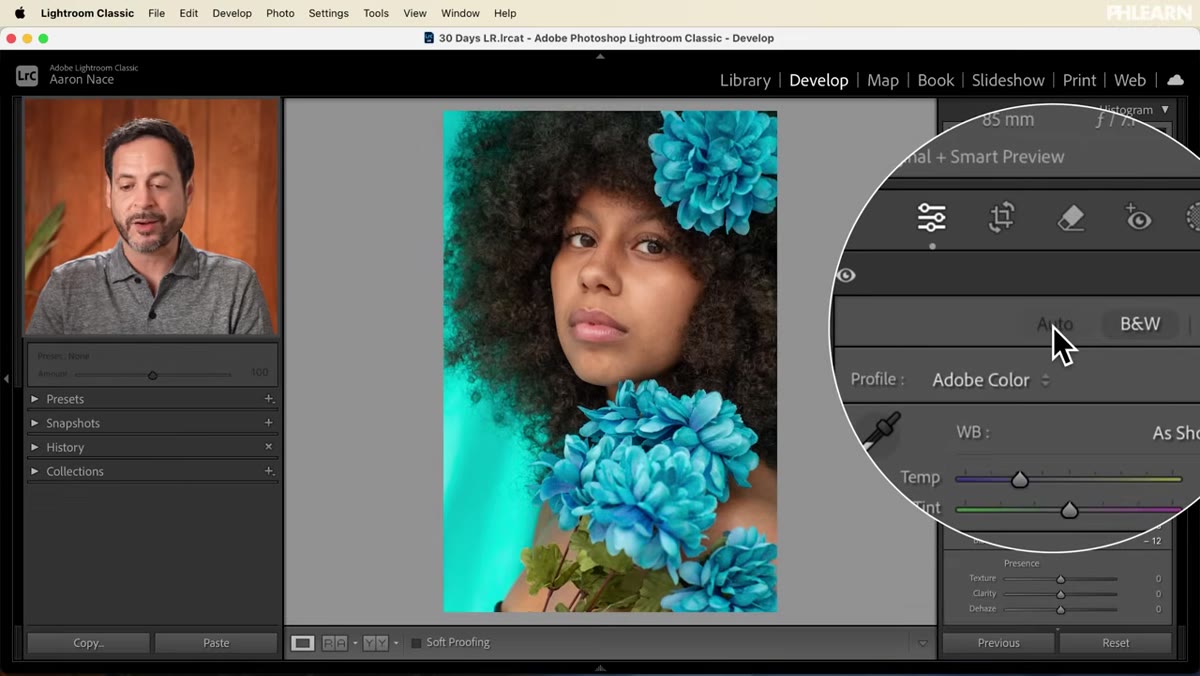 Lightroom Develop panel before any adjustments applied
Before you touch a single slider, click the Auto button in the Develop module’s Basic panel. I know, I know. Auto feels like cheating. But Aaron makes a solid case for it as a starting point, and after using it on my own shoots I’ve come around. Lightroom’s Auto is genuinely good at recovering clipped highlights, lifting shadows that are too muddy, and adding a touch of Vibrance that warms the image up without going garish. It won’t get you to a finished edit, but it gets the image to a workable baseline in one click.
Lightroom Develop panel before any adjustments applied
Before you touch a single slider, click the Auto button in the Develop module’s Basic panel. I know, I know. Auto feels like cheating. But Aaron makes a solid case for it as a starting point, and after using it on my own shoots I’ve come around. Lightroom’s Auto is genuinely good at recovering clipped highlights, lifting shadows that are too muddy, and adding a touch of Vibrance that warms the image up without going garish. It won’t get you to a finished edit, but it gets the image to a workable baseline in one click.
Once Auto does its thing, hit the forward slash key (that’s the one above Enter on your keyboard) to toggle between your before and after. Use that comparison to figure out what Auto got wrong or left unfinished. That tells you exactly where your manual work needs to focus.
Step 2: Use Select Subject to Isolate the Background
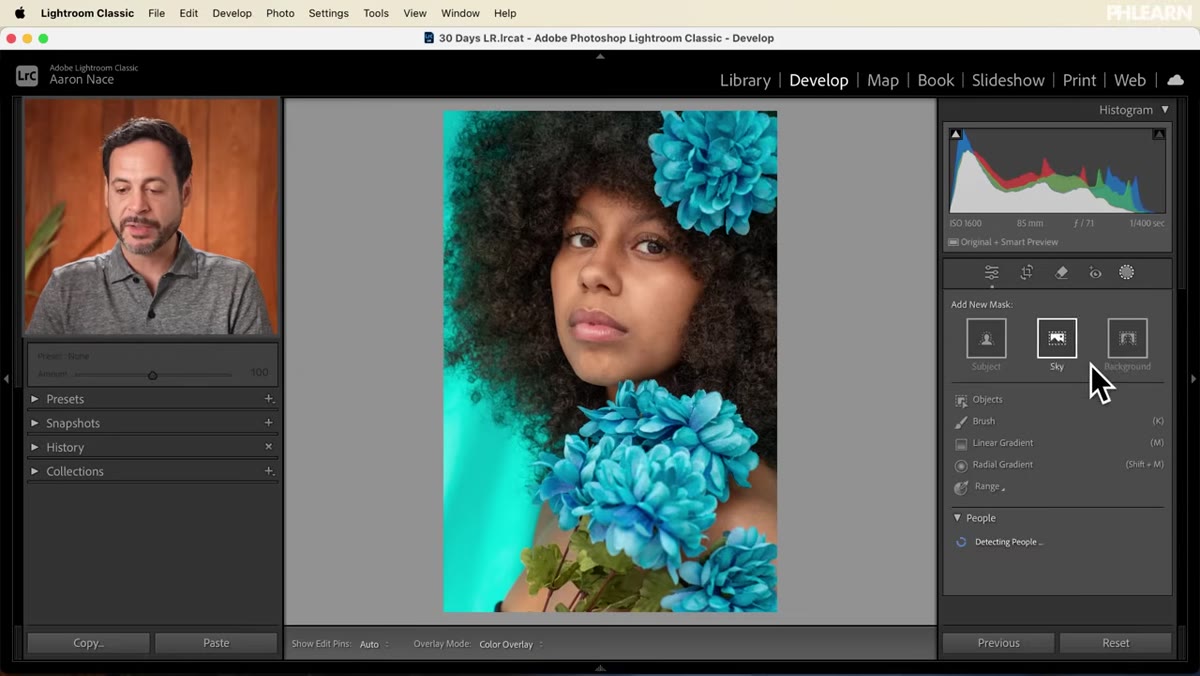 Lightroom masking panel with Select Subject overlay visible
Open the Masking panel and choose Select Subject. Lightroom’s AI selection does the heavy lifting here, identifying the person and any objects closely associated with them, like flowers in this case. On its own, that’s useful for adjusting the subject. But Aaron’s move is smarter. Once the selection is made, click the three-dot menu on the mask and choose Invert Mask. Now everything that isn’t the subject is selected instead.
Lightroom masking panel with Select Subject overlay visible
Open the Masking panel and choose Select Subject. Lightroom’s AI selection does the heavy lifting here, identifying the person and any objects closely associated with them, like flowers in this case. On its own, that’s useful for adjusting the subject. But Aaron’s move is smarter. Once the selection is made, click the three-dot menu on the mask and choose Invert Mask. Now everything that isn’t the subject is selected instead.
This gives you isolated control over the background without touching the person at all. It sounds simple, and it is, which is exactly why it works. The background adjustment stays completely clean and the subject is protected.
Step 3: Match the Background Color with Point Color
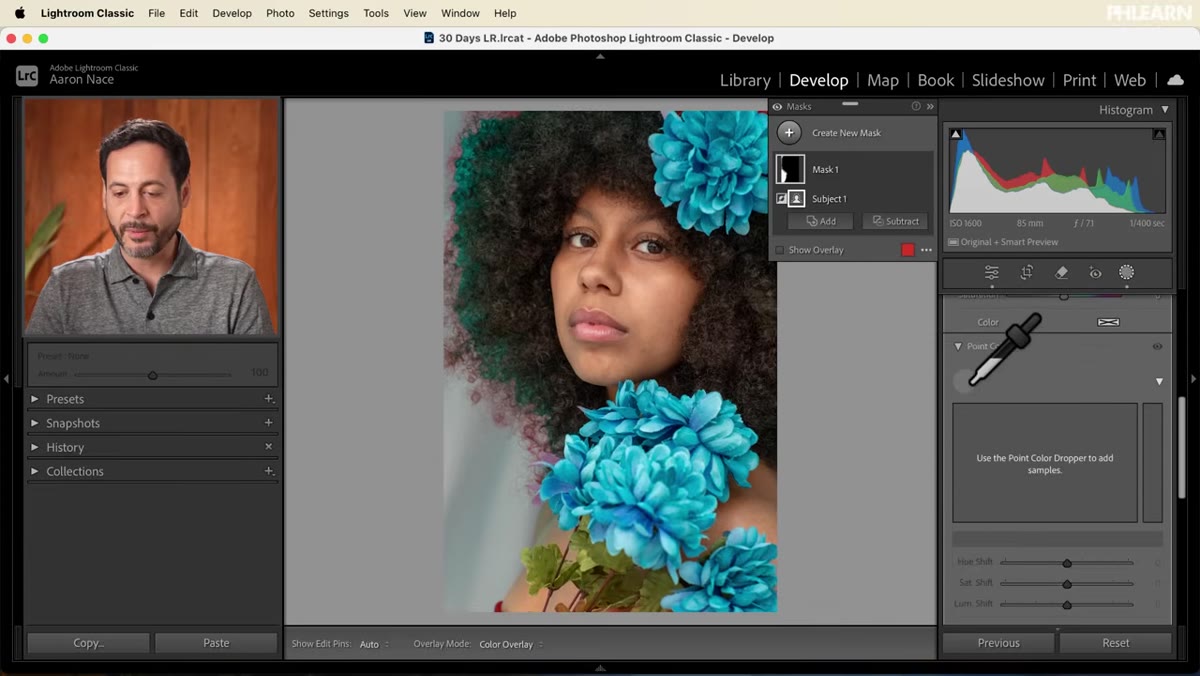 Point Color tool open inside a masked background adjustment
With the inverted background mask active, scroll all the way down in the adjustment panel to find Point Color. This tool lets you click directly on a color in the image and then shift its hue along a spectrum. Aaron uses it here to nudge the background color so it harmonizes with the flowers in the frame. He isn’t drastically recoloring the scene. He’s just closing the gap between two tones that were slightly off from each other.
Point Color tool open inside a masked background adjustment
With the inverted background mask active, scroll all the way down in the adjustment panel to find Point Color. This tool lets you click directly on a color in the image and then shift its hue along a spectrum. Aaron uses it here to nudge the background color so it harmonizes with the flowers in the frame. He isn’t drastically recoloring the scene. He’s just closing the gap between two tones that were slightly off from each other.
Click the eyedropper within Point Color, sample the background color, and then drag the Hue slider left or right until the background and the flowers feel like they belong together. Subtle is the goal. Toggle the adjustment on and off to check your work. If you can see the shift when it’s on, you’ve probably gone too far.
Step 4: Brighten the Face with a Radial Gradient
 Radial gradient mask centered on subject’s face
Create a new mask and this time choose Radial Gradient. Click roughly in the center of the subject’s face and drag outward to create an ellipse that covers the face and softens out toward the edges. The Radial Gradient has a built-in feather, so the brightening effect fades naturally into the surrounding image rather than cutting in hard.
Radial gradient mask centered on subject’s face
Create a new mask and this time choose Radial Gradient. Click roughly in the center of the subject’s face and drag outward to create an ellipse that covers the face and softens out toward the edges. The Radial Gradient has a built-in feather, so the brightening effect fades naturally into the surrounding image rather than cutting in hard.
Bring the Exposure slider up slightly. Aaron’s guidance here is worth internalizing: just a tiny bit. Somewhere in the range of plus 0.2 to plus 0.4 is usually enough. Then lift the Shadows slider a touch as well to open up any darker areas around the eyes or under the chin. The goal is to make the face the brightest thing in the frame by a small but noticeable margin.
Step 5: Darken the Surrounding Image to Create Contrast
 Exposure slider being reduced on a new overall adjustment
With the face brightened, the last mask creates contrast against it. Add another adjustment, this time targeting the rest of the image, and pull the Exposure down slightly. You aren’t going for a dramatic vignette look. You’re just ensuring that the periphery of the image is a half-stop or so dimmer than the subject’s face.
Exposure slider being reduced on a new overall adjustment
With the face brightened, the last mask creates contrast against it. Add another adjustment, this time targeting the rest of the image, and pull the Exposure down slightly. You aren’t going for a dramatic vignette look. You’re just ensuring that the periphery of the image is a half-stop or so dimmer than the subject’s face.
This is the step most people skip because it feels redundant after brightening the face. It isn’t. Relative brightness is what matters to the eye. Brightening the face and dimming the surround creates more separation than either adjustment would alone. The viewer’s eye follows light, and you’re simply making sure the light leads where you want.
What I’d Add from My Own Workflow
Aaron’s three-mask framework is clean and I use a version of it on almost every portrait session I deliver. The one thing I layer on top is an Eye Mask after the face brightening step. Lightroom’s AI can now select eyes specifically, and adding a separate mask with a small Exposure boost and a Clarity bump of around plus 10 to plus 15 makes the eyes genuinely pop without looking artificially sharpened.
If you’re working with a subject who has warm-toned skin, also watch your Vibrance setting on that face mask. Lightroom’s Auto sometimes cranks Vibrance globally, which can push skin toward orange under the brightening. I’ll often dial Vibrance back slightly on the face gradient to keep the skin tone accurate while the overall image stays rich. Small thing, but it’s the difference between a portrait that looks edited and one that looks like the photographer just got it right.
The single most important thing Aaron demonstrates in this tutorial is that portrait retouching in Lightroom is fundamentally about directing attention. Brighter face, darker surround, harmonized background. Every adjustment points back to that same intention. You’re not just making the image look better. You’re choreographing where the viewer looks.
Watch the full tutorial on YouTube and download the free raw file Aaron provides to practice along with the exact image he uses. There’s no better way to internalize these techniques than working through them on a real file.
Comments
Leave a Comment