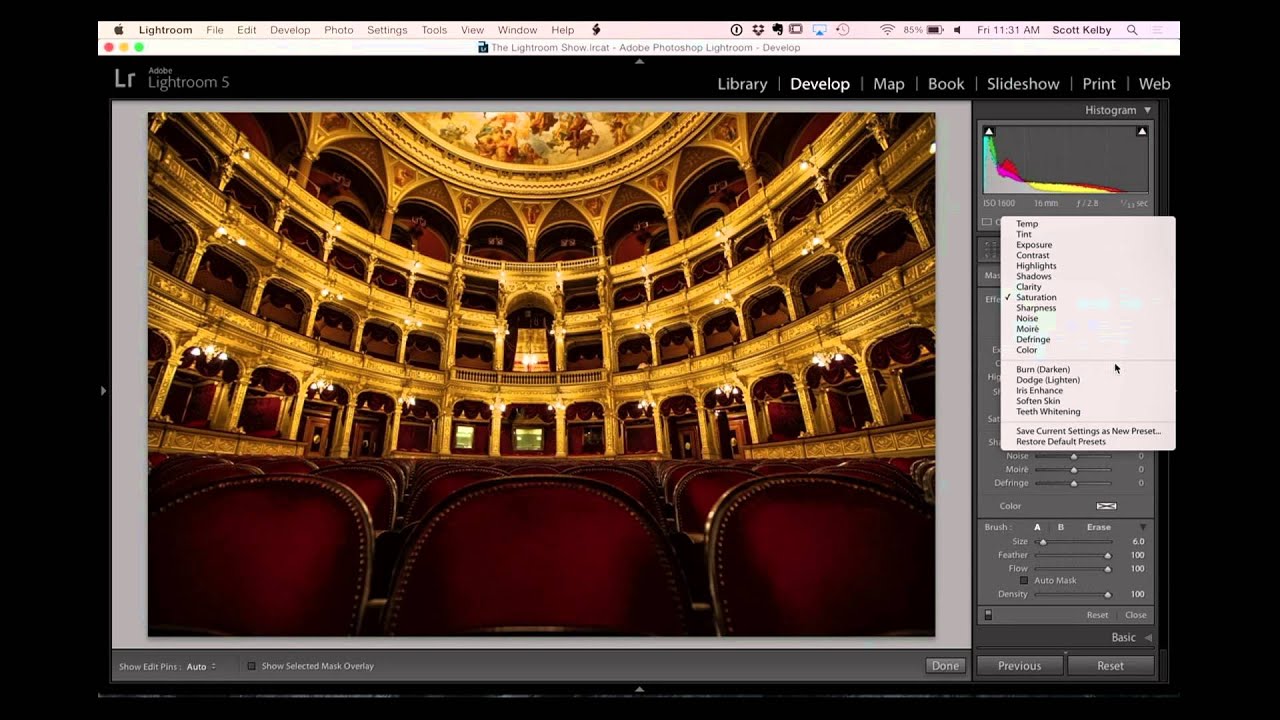
There’s a specific kind of frustration that comes from knowing a tool exists somewhere inside Lightroom but not being able to find it fast enough to use it in a real session. I’ve been editing photos long enough that most panels feel like muscle memory at this point, but I still hit those moments where I’m working on a client gallery at 11pm, vinyl crackling in the background, and I realize I’ve been doing something the slow way for years. That’s exactly how I felt watching Episode 10 of The Lightroom Show with Scott Kelby and RC Concepcion over on KelbyOne. Two techniques, back to back, both of them deceptively simple, both of them genuinely useful. Watch the full tutorial on YouTube if you want to follow along while you read.
The first technique is about painting with color using the Adjustment Brush - specifically, pulling a color directly from somewhere inside your image and using it as a tint. The second is about noise reduction, and not just the basic luminance drag-and-done approach most people use. Both of these come up constantly in real editing situations, and the video handles them in a way that’s fast and practical. Here’s a step-by-step breakdown so you can apply both without pausing and rewinding.
Step 1: Open the Adjustment Brush and Find the Color Picker
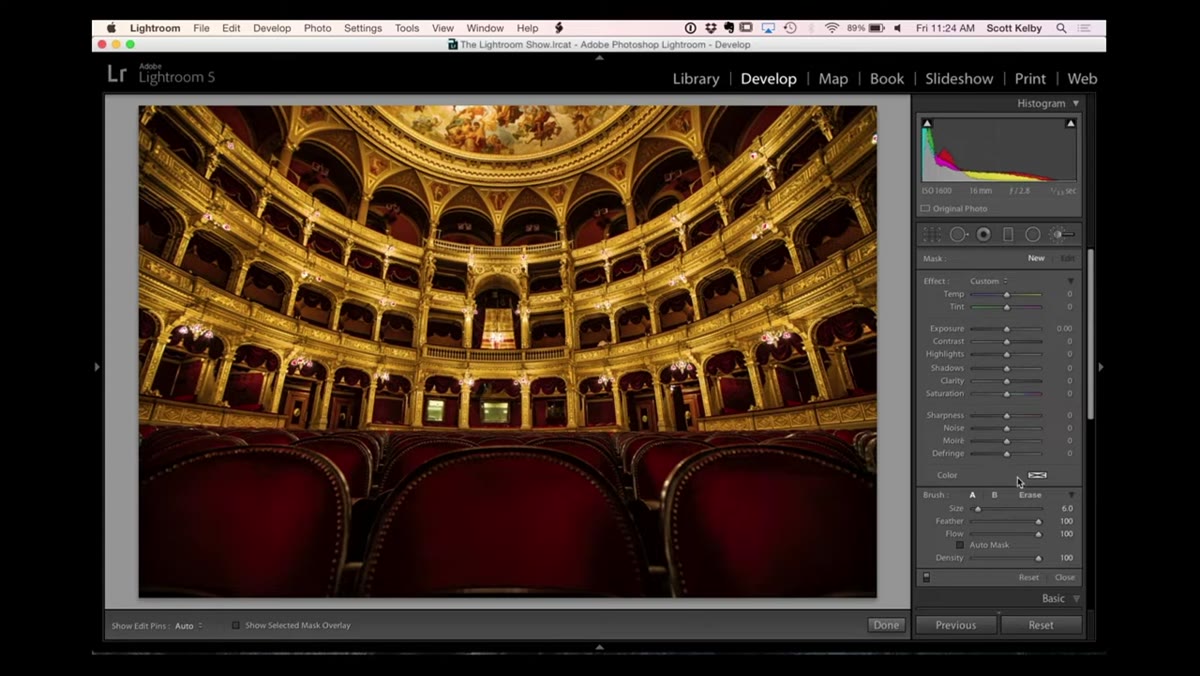 Adjustment Brush panel open in Lightroom Develop module
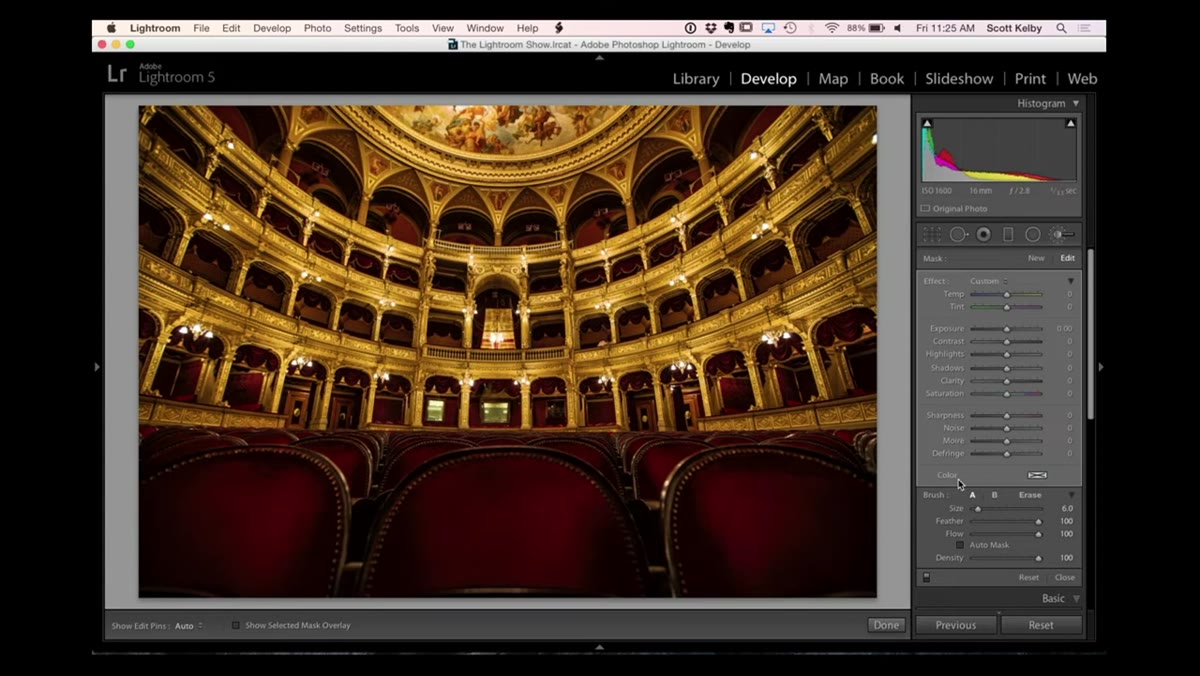
Get into the Develop module and select the Adjustment Brush (keyboard shortcut K). Scroll to the very bottom of the brush settings panel. You’re looking for a color swatch that, honestly, doesn’t look like much. It’s a small square with an X through it - not exactly intuitive design. That X just means no color is currently selected, but this is the tool that lets you paint a color tint onto any area of your image using a brush mask.
Adjustment Brush panel open in Lightroom Develop module
Get into the Develop module and select the Adjustment Brush (keyboard shortcut K). Scroll to the very bottom of the brush settings panel. You’re looking for a color swatch that, honestly, doesn’t look like much. It’s a small square with an X through it - not exactly intuitive design. That X just means no color is currently selected, but this is the tool that lets you paint a color tint onto any area of your image using a brush mask.
Step 2: Click and Drag to Sample a Color Directly from Your Photo
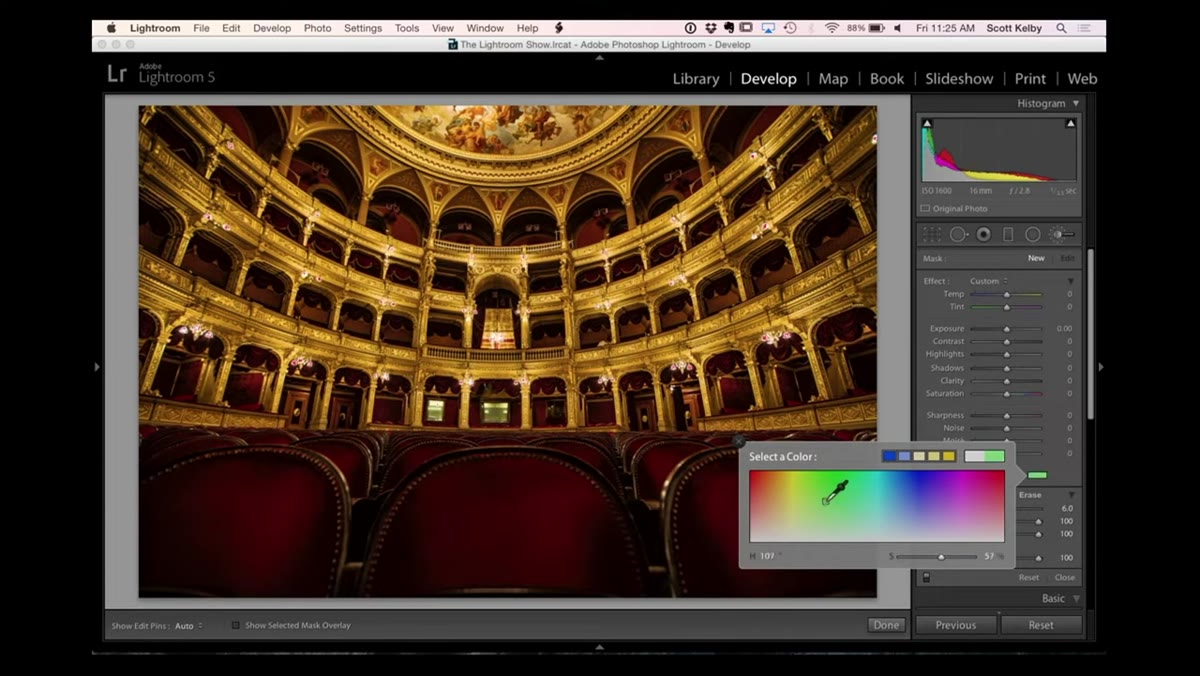 Eyedropper cursor sampling color from image area
Click on that color swatch and the color picker dialog opens. Here’s the part most people miss: as long as you hold the mouse button down while that dialog is open, you can drag the eyedropper cursor out of the dialog box and directly onto your image. Hover over any area of the photo and you’ll see the swatch update in real time to match whatever color lives under your cursor. Release the mouse when you land on the color you want to steal. Close the dialog and that color is now loaded into your brush as a tint. Scott demonstrates this by sampling the red from a set of chairs in his image - the kind of warm, specific red you’d never nail by manually dragging HSL sliders.
Eyedropper cursor sampling color from image area
Click on that color swatch and the color picker dialog opens. Here’s the part most people miss: as long as you hold the mouse button down while that dialog is open, you can drag the eyedropper cursor out of the dialog box and directly onto your image. Hover over any area of the photo and you’ll see the swatch update in real time to match whatever color lives under your cursor. Release the mouse when you land on the color you want to steal. Close the dialog and that color is now loaded into your brush as a tint. Scott demonstrates this by sampling the red from a set of chairs in his image - the kind of warm, specific red you’d never nail by manually dragging HSL sliders.
Step 3: Paint the Color Tint onto Your Target Area
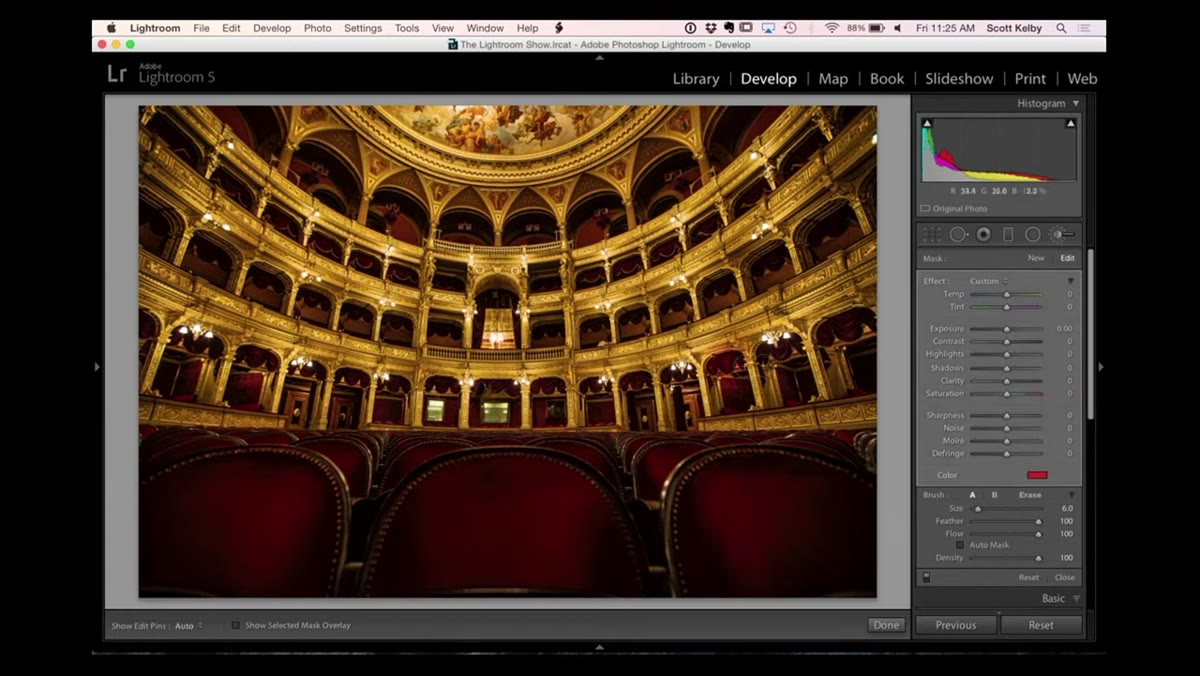 Painting color tint onto drapes with adjustment brush
With your sampled color active, paint over whatever part of the image you want to shift. The brush applies that color as a tint, not a solid fill, so it layers naturally over the existing tones. If you’re working near edges, turn on Auto Mask in the brush options - it helps Lightroom detect and respect natural edges so you’re not bleeding color into areas you want to leave alone. You can also go back and adjust the saturation of the color after you paint by reopening the color picker and pulling the saturation slider. The brush mask is live, so nothing is destructive here.
Painting color tint onto drapes with adjustment brush
With your sampled color active, paint over whatever part of the image you want to shift. The brush applies that color as a tint, not a solid fill, so it layers naturally over the existing tones. If you’re working near edges, turn on Auto Mask in the brush options - it helps Lightroom detect and respect natural edges so you’re not bleeding color into areas you want to leave alone. You can also go back and adjust the saturation of the color after you paint by reopening the color picker and pulling the saturation slider. The brush mask is live, so nothing is destructive here.
Step 4: Reset the Color Picker Back to None
 Double-clicking the word “Color” to reset to no color
This is the second micro-tip from the segment and it’s worth bookmarking mentally. If you leave a color loaded in your Adjustment Brush and forget about it, every new pin you drop will carry that tint. That’s a sneaky way to introduce unwanted color casts to areas you’re just trying to dodge or sharpen. The reset is simple: double-click the word “Color” in the brush panel, not the swatch itself, but the label. Lightroom immediately clears the tint and returns to no color. Fast, clean, done.
Double-clicking the word “Color” to reset to no color
This is the second micro-tip from the segment and it’s worth bookmarking mentally. If you leave a color loaded in your Adjustment Brush and forget about it, every new pin you drop will carry that tint. That’s a sneaky way to introduce unwanted color casts to areas you’re just trying to dodge or sharpen. The reset is simple: double-click the word “Color” in the brush panel, not the swatch itself, but the label. Lightroom immediately clears the tint and returns to no color. Fast, clean, done.
Step 5: Address Color Noise Before You Touch Luminance Noise
 Color noise slider being moved right in Detail panel
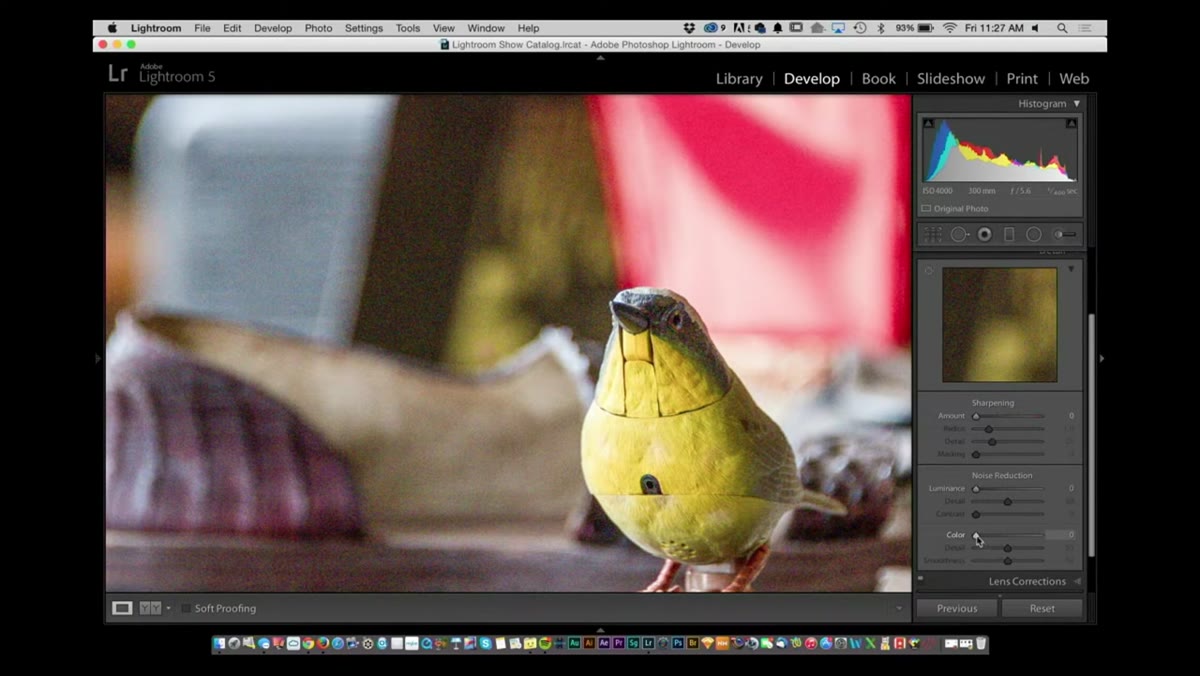
Switching gears entirely: RC walks through a high-ISO bird photo shot around ISO 4000 on a camera that was not thrilled about that decision. The image has two distinct types of noise. One is the random red and green pixel splattering that color noise creates. The other is the grainier luminance noise underneath it. Most people jump straight to the Luminance slider in the Detail panel and drag until it looks cleaner. That’s not wrong, but it misses the color noise problem.
Color noise slider being moved right in Detail panel
Switching gears entirely: RC walks through a high-ISO bird photo shot around ISO 4000 on a camera that was not thrilled about that decision. The image has two distinct types of noise. One is the random red and green pixel splattering that color noise creates. The other is the grainier luminance noise underneath it. Most people jump straight to the Luminance slider in the Detail panel and drag until it looks cleaner. That’s not wrong, but it misses the color noise problem.
Go into the Detail panel and look for the Color slider under Noise Reduction. Drag it to the right first. Watch what happens to those stray reds and greens - they flatten out and disappear. The image still looks noisy after you do this, but the noise is now monochromatic and uniform, which the eye reads as far less distracting. You’ve essentially separated the two problems so you can solve them cleanly.
Step 6: Apply Luminance Noise Reduction to Clean Up What Remains
 Luminance noise reduction slider applied to bird photo
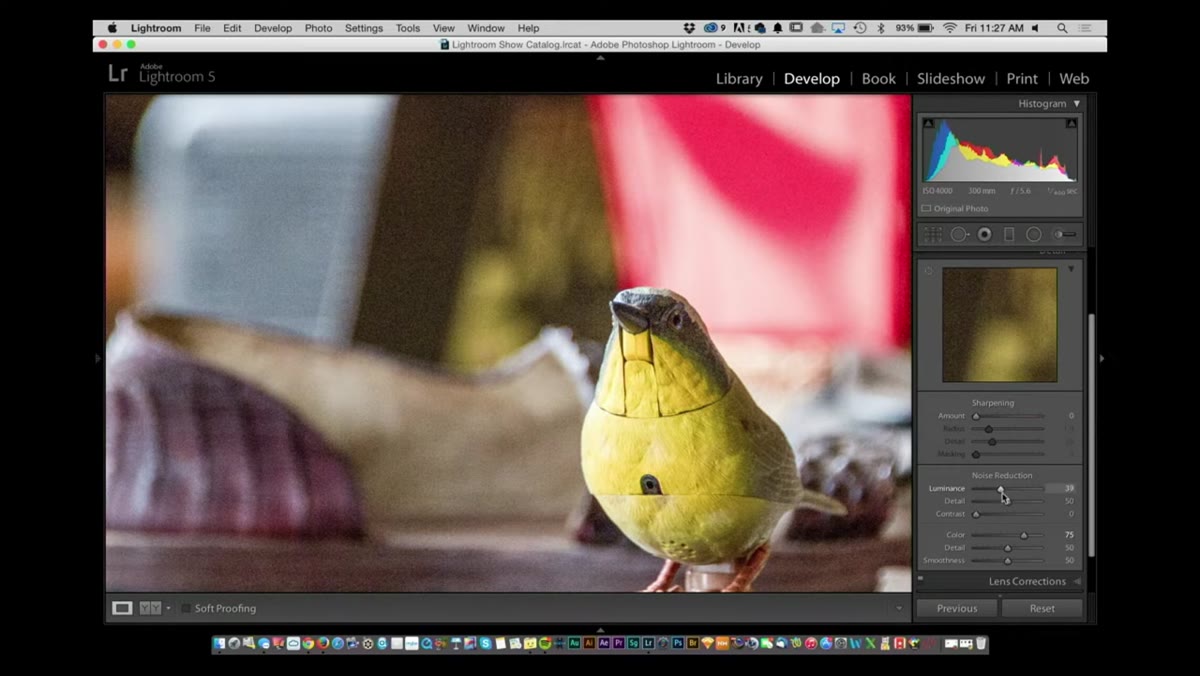
Now grab the Luminance slider and push it to the right. With the color noise already handled, the luminance reduction has less competing information to deal with and the result reads cleaner than if you’d skipped straight to this step. Scott points out something worth understanding here: if you’re editing a RAW file, Lightroom applies noise reduction to the actual raw sensor data, which gives the algorithm far more to work with. Third-party noise reduction plugins generally wait until the image has been rendered to 8-bit JPEG before they process it, which means they’re working with less information. For quick, non-destructive noise work, Lightroom’s built-in tools - especially in this order - are more capable than most people give them credit for.
Luminance noise reduction slider applied to bird photo
Now grab the Luminance slider and push it to the right. With the color noise already handled, the luminance reduction has less competing information to deal with and the result reads cleaner than if you’d skipped straight to this step. Scott points out something worth understanding here: if you’re editing a RAW file, Lightroom applies noise reduction to the actual raw sensor data, which gives the algorithm far more to work with. Third-party noise reduction plugins generally wait until the image has been rendered to 8-bit JPEG before they process it, which means they’re working with less information. For quick, non-destructive noise work, Lightroom’s built-in tools - especially in this order - are more capable than most people give them credit for.
What I’d Add from My Own Experience
The color sampling trick from Step 2 has a creative use that Scott doesn’t cover in this segment but that I use regularly: cohesive color grading across a series of images. When I’m editing a batch from a single shoot and I want a specific warm tone to thread through multiple photos, I’ll sample that exact color from a key image and save a preset around it. I usually name my presets after songs, so this one lives in my library as something stripped-down and specific. Using a sampled color instead of a manually selected one means the tint is pulled from the actual light in the scene - which makes it blend more naturally when you apply it elsewhere.
Also worth noting: the color saturation slider inside the brush settings is easy to forget. Keep it low, around 20 to 40 percent, unless you’re going for something dramatic. Strong color tints applied with a brush can look convincing at low saturation and cartoonish at high saturation. Start subtle and push until it breaks, then back off.
The single most useful thing from this whole tutorial is the color noise-first approach. It reframes noise reduction as a two-step process instead of a one-slider fix, and the results are noticeably better. If you’re shooting in low light even occasionally, this is worth ingraining before your next late-night edit session. Watch the full tutorial on YouTube to see both techniques demonstrated live - Scott and RC move fast and there’s a lot packed into a short runtime.
Comments
Leave a Comment