Stop Scrolling Through 200,000 Photos - Let Lightroom's Map and Face Recognition Do the Work

Stop Scrolling Through 200,000 Photos - Let Lightroom's Map and Face Recognition Do the Work

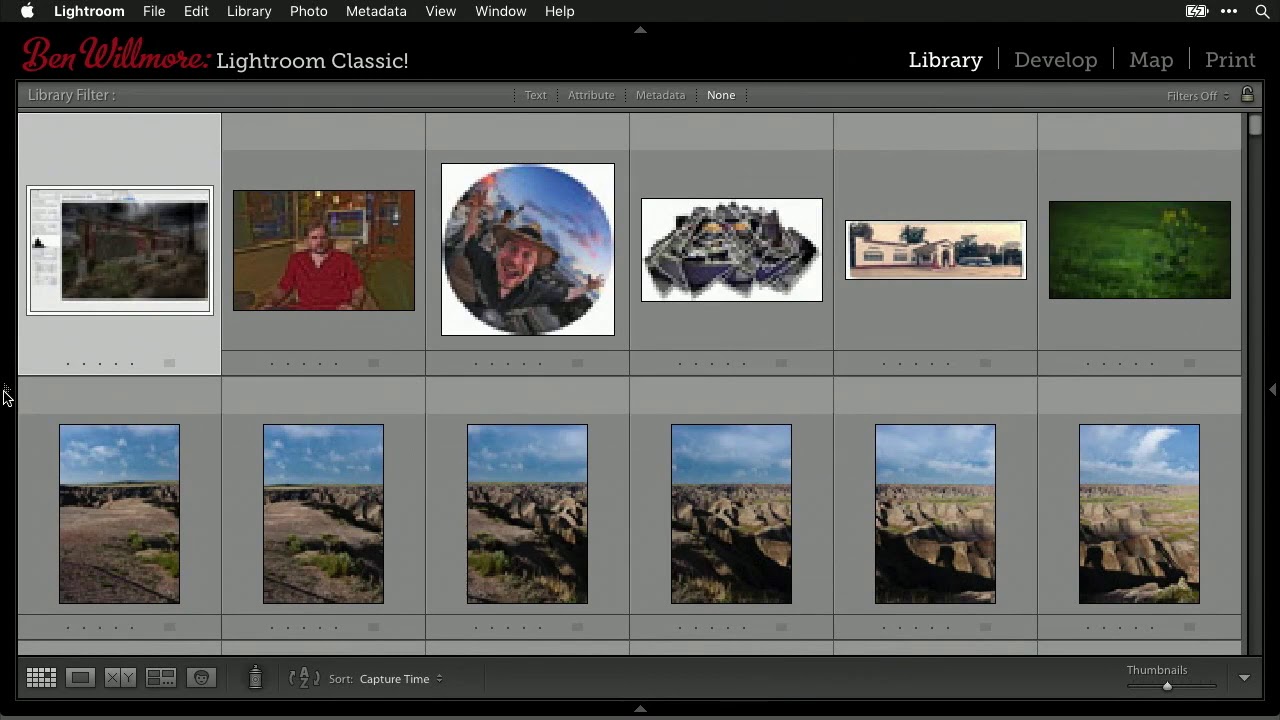
I have a folder problem. Not a hoarding problem, I want to be clear, just a folder problem. After years of shooting everything from Nashville band press shots to weekend road trips through the Cumberland Plateau, my Lightroom catalog has grown into something that requires genuine strategy to navigate. Searching by date works until it doesn’t. Collections help until you forget to add something. And scrolling the grid view at 2 a.


Why Your Digital Photos Feel Flat (And How Film Emulation Fixes It in Lightroom)

Why Your Digital Photos Feel Flat (And How Film Emulation Fixes It in Lightroom)

There’s a photo on my hard drive from 2014 that I cannot replicate. It was shot on a disposable camera at a show my band played in a bar that smelled like old carpet and ambition. The colors are warm and slightly wrong. The shadows have this green-brown thing happening. The highlights just kind of… stop, instead of blowing out. I’ve spent probably six hours across multiple editing sessions trying to get a digital photo to look like that.

How to Reshape Light in Lightroom When Your Photo Has No Focal Point

How to Reshape Light in Lightroom When Your Photo Has No Focal Point

There’s a specific kind of editing frustration I run into a few times a month. I’m looking at a technically solid photo, good exposure, interesting location, sharp focus, and I feel nothing. The image has no heartbeat. Everything in the frame is fighting for equal attention, which means nothing actually wins. I’ve cropped, I’ve tweaked the tone curve, I’ve gone back to the raw file and started over. Sometimes the problem isn’t the exposure or the colors.

How to Build Holiday Photo Templates in Lightroom (Starting in Photoshop)

How to Build Holiday Photo Templates in Lightroom (Starting in Photoshop)

Every December I get the same texts from photographer friends: “Hey, do you have a holiday card template I can borrow?” For years I pointed them toward whatever Canva had on offer, which always felt like handing someone a gas station sandwich. The real answer is that you can build something far better yourself, and it starts before you ever open Lightroom. In this KelbyOne tutorial, educator Scott Kelby walks through a workflow for creating holiday-themed photo templates by pulling stock graphics into Photoshop, isolating them properly, and setting them up so Lightroom can use them with any client photo you drop in.

7 Lightroom Shortcuts That Actually Changed How I Edit (Breakdown of Pierre T. Lambert's Best Tips)

7 Lightroom Shortcuts That Actually Changed How I Edit (Breakdown of Pierre T. Lambert's Best Tips)

I’ll be honest with you: I spent the first two years of my Lightroom life doing everything the slow way. Clicking through menus, hunting for tools, dragging panels around like I was rearranging furniture. It wasn’t until I started watching other working photographers share their actual workflows that I realized how much time I was bleeding out of every editing session. The fixes were almost embarrassingly simple once I saw them.

Your Lightroom Edits Are Stunning. Your Export Settings Are Quietly Ruining Them.

Your Lightroom Edits Are Stunning. Your Export Settings Are Quietly Ruining Them.

I had a client email me last year convinced something was wrong with her monitor. Her photos looked incredible inside Lightroom, rich, warm, with this gorgeous golden-hour grade she’d spent two hours dialing in. The moment she exported and opened the files in her browser to send to a client, they looked flat. Slightly green. Wrong. Her monitor was fine. Her editing was fine. Her export settings were the problem, and they were set to Lightroom’s defaults.

Stop Switching Tabs: How to Publish Photos to Facebook Directly From Lightroom

Stop Switching Tabs: How to Publish Photos to Facebook Directly From Lightroom

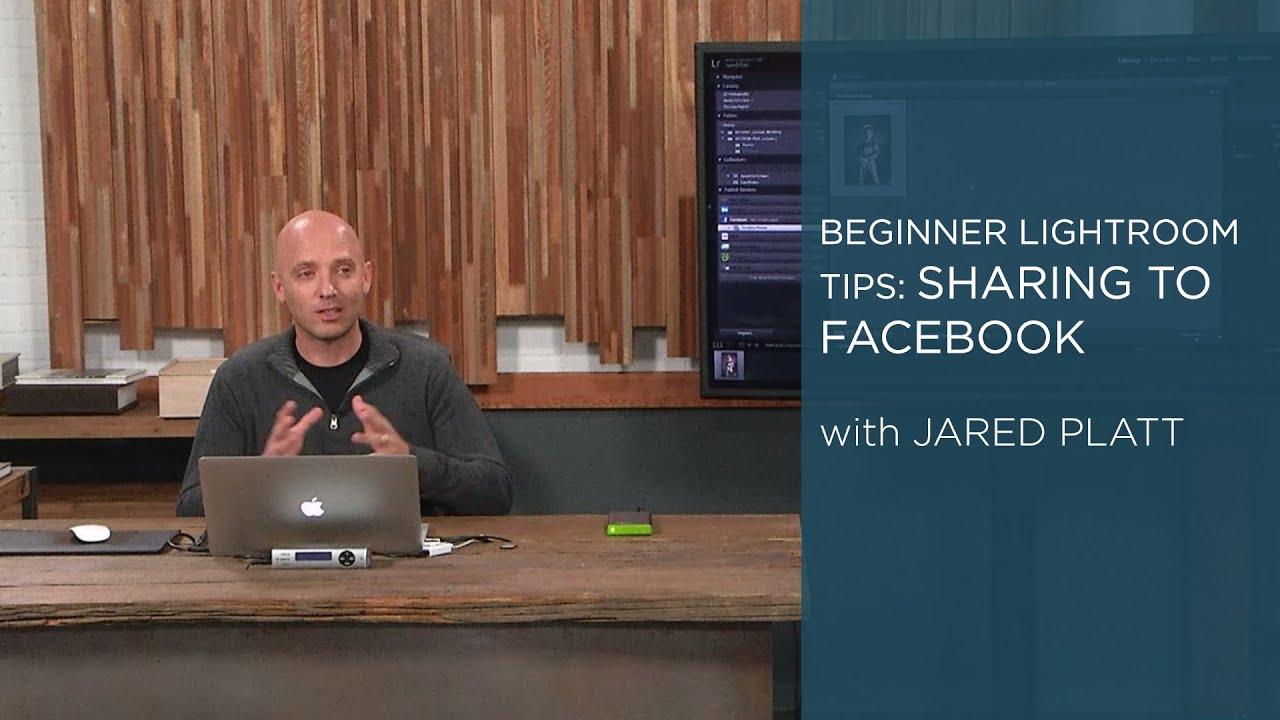
There’s a workflow tax most photographers don’t think about: the time spent outside Lightroom doing things Lightroom can already handle. You finish an edit, export the file, open a browser, log into Facebook, navigate to your album, upload the photo, write a caption, and post. That whole sequence takes maybe five minutes. Multiply it by every shoot, every client update, every “hey look what I captured this weekend” moment, and you’ve lost a meaningful chunk of time that could’ve gone toward actual editing.

How to Watermark Your Photos in Lightroom (and Actually Get Paid)

How to Watermark Your Photos in Lightroom (and Actually Get Paid)

There’s a story I’ve heard from too many photographers to count. Shoot a wedding or a portrait session, send over proofs so the client can pick their favorites, and then… silence. No final payment, no response, just your unwatermarked images sitting on someone’s Facebook page while you eat the loss. It’s the kind of thing that sounds like it happens to other people until it happens to you. I’ve been lucky, but I’ve also been careful, and a big part of that comes down to something as simple as slapping a watermark on anything that leaves my hard drive before a job is fully paid.

How to Watermark Your Photos in Lightroom Without Making Them Look Cheap

How to Watermark Your Photos in Lightroom Without Making Them Look Cheap

There’s a specific kind of frustration that comes from sharing a photo online and watching it float away from you with no indication it was yours. I’ve been there more times than I can count. Before I ever wrote a single tutorial, I was editing press shots for my band in a tiny apartment in Nashville, learning Lightroom out of necessity because we couldn’t afford to hire anyone. Credit rarely traveled with those images.

Why Your Ancient iPhone Is Worth More Than You Think (And What This Means for Creative Professionals)

Why Your Ancient iPhone Is Worth More Than You Think (And What This Means for Creative Professionals)

Why Your Ancient iPhone Is Worth More Than You Think (And What This Means for Creative Professionals) I recently discovered something wild while digging into Apple’s trade-in program: the company will accept iPhones so old they practically qualify as antiques. We’re talking about devices that predate some of today’s trending TikTok sounds. And honestly? This changes the game for creative professionals who’ve been sitting on dusty devices for years. The Trade-In Surprise It turns out Apple’s trade-in eligibility reaches back further than most people realize.

Read Your Image Before You Touch a Slider: Lightroom Mobile's Most Underused Color Tools

Read Your Image Before You Touch a Slider: Lightroom Mobile's Most Underused Color Tools

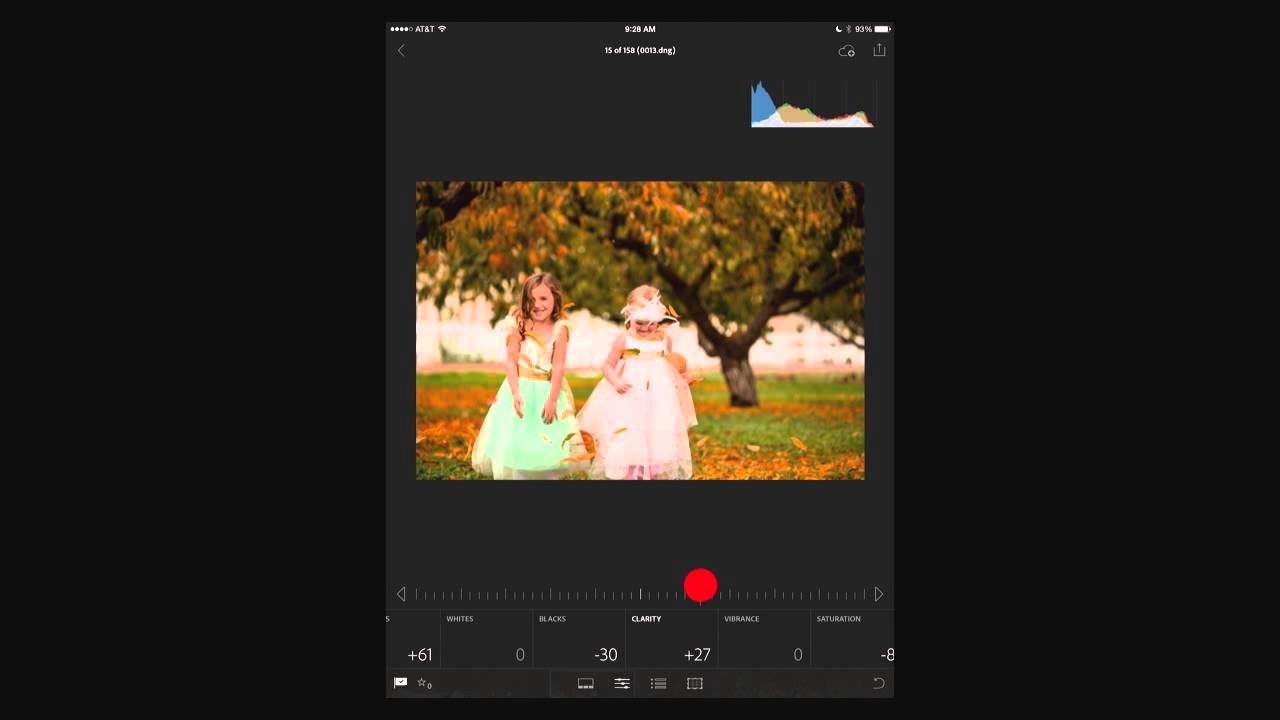
I edit a lot of photos on my phone. Not because I prefer it, but because deadlines don’t care where you are. And for years, my mobile edits had a subtle problem I couldn’t name: they looked great on my screen, then landed in delivery looking either blown out or flat. The culprit wasn’t my eye. It was that I was trusting a glowing rectangle held under a Nashville sun to tell me the truth about my exposure.

From Raw File to Ready-to-Share: A Complete Lightroom Export Workflow

From Raw File to Ready-to-Share: A Complete Lightroom Export Workflow

There is a specific kind of frustration that hits when you spend an hour editing a photo, finally nail the look, and then export it only to watch it fall apart on screen or come back from the printer looking like a muddy mess. Color shifts, soft details, wrong dimensions. I have been there more times than I want to admit, and it took me a while to realize that exporting is not an afterthought.